

Logging into the Requisition and Number Generator
- Login to the Requisition and Number Generator through My UW at http://my.wisc.edu using your NetID and password. If you do not already have a NetID and password, choose the “Activate your NetID” link to begin. For any questions pertaining to My UW logins or problems activating your NetID, please contact DoIT’s Help Desk at 264-HELP.
NetID Login
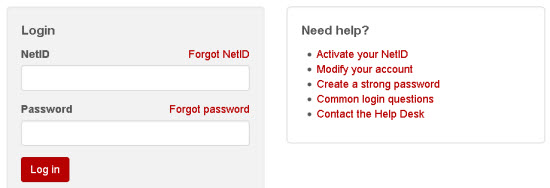
- Determine if the Requisition and Number Generator appears in MyUW home. Any payrolled individual at UW-Madison should be able to search for the widget and add it to MyUW home.
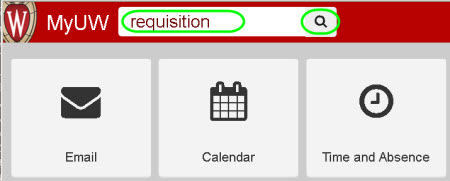
- If the widget is not found, search for "requisition" in the search bar at the top of the site and click on the search icon.
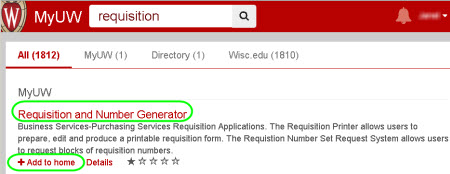
- Find the Requisition and Number Generator widget from the list and click on the "Add to home" link.
- Return to MyUW Home and find the Requisition and Number Generator widget. The content and its arrangement on the page can vary and the widget can be easily moved to any desired spot.
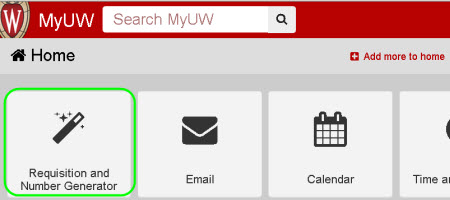
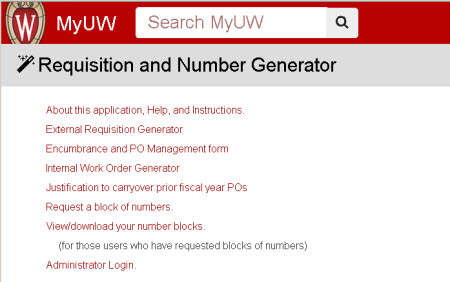
- Choose one of the links within the widget to begin to generate external requisitions, internal work orders, or to request requisition numbers. The following sections of this tutorial will cover the available options in more detail.
User Guide Index | Back - Overview | Next - Creating an External Requisition