

Contract Search Application Instructions
I. Starting the Application:
From the Contracts Page, click on the Search All UW-Madison, UW System, and State (DOA) Purchasing Contracts link, under the Keyword Search heading.
II. Searching for Contracts: The Main Menu
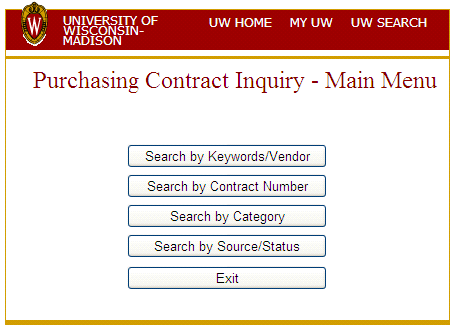
Once the application is running, you will be brought to the Main Menu as pictured below. This menu offers the user the ability to select from 4 different types of searches or to exit the program. Click on your desired selection to perform a search.
III. Search Types
Keyword/Vendor Search
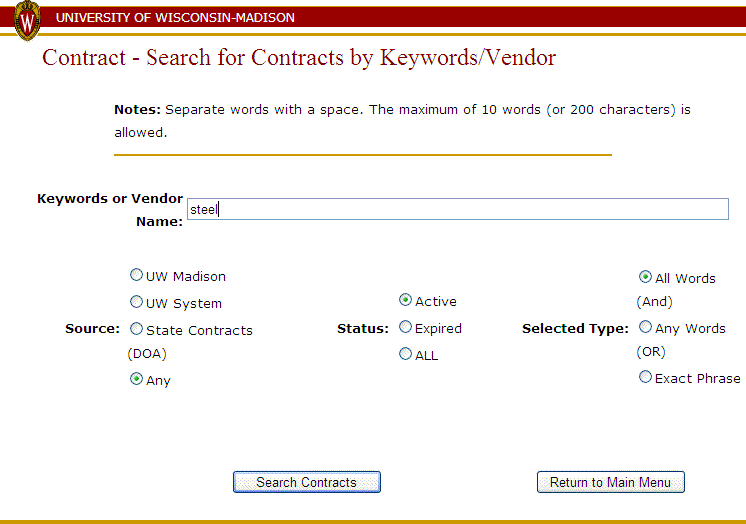
Searching by Keyword/Vendor is the first option. The actual search screen is pictured below. Enter a keyword relating to the goods or services you are interested in finding or a manufacturer or vendor whose product or services you are interested in. You may enter up to 10 words, separating each with a space. The more words entered, the more specific the search, and consequently, less results are returned. Three customized search options are available:
- "Source" (either UW Madison, UW System, or State Contracts)
- "Status" (either Active, Expired, or All)
- "Search type" (using "and" logic, "or" logic, or the "exact phrase" entered)
In this example, we will search
for the word "steel" using the default settings. Type "steel" into the Keyword field and click on the "Search Contracts" button near the bottom of your screen. The results for our search appear in the Using Search Results section below.
Contract Number Search
Use this search method if you already know the number of the contract you are interested in. Type any part of the number into the "Contract Number" field and click the "Search Contracts" button. Dashes, spaces, and parenthesis are not necessary, but may be entered. A list of contracts containing any part of the number you entered (in their contract number) will be generated.
Category Search:
We have separated our contracts into categories as follows:
- Agricultural (Animals, Equipment, Supplies)
- Copiers
- Food
- Furniture
- Hotels/Conferences
- Information Technology
- Maintenance, Repair, & Operational (MRO)
- Minority Business Enterprise (MBE)
- Office (Equipment, Supplies)
- Printing
- Scientific (Equipment, Chemicals, Safety)
- Services
- Telecommunications, Audio/Visual, Photographic and Electronics
- Vehicles & Transportation Services
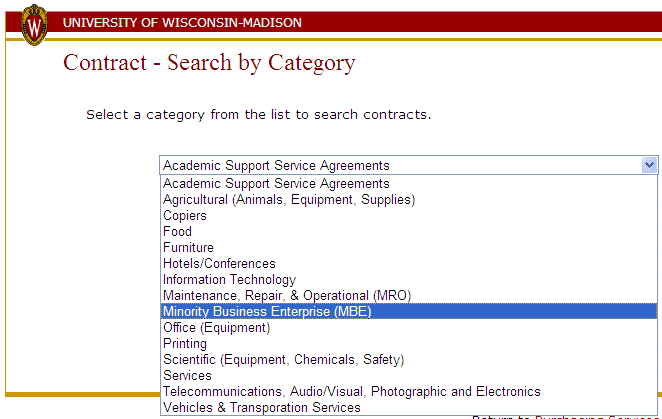
Choose the category of interest and click "Search Contracts." Your results will contain all of the contracts we have categorized in this area. Only one category may be chosen at a time.
Source/Status Search:
This search option allows you to find all the contracts associated with 1 of the 3 sources by choosing the button for the contracting source of interest and limiting the search by Status (either the default of "Active" or by "Expired" or "All"). Click "Search Contracts" to generate your set of results. This will bring back a very large set of results (in some cases hundreds of entries).
Search for Minority Business Enterprises on Contract:
From the Main Menu, choose Category Search. Choose the "Minority Business Enterprise (MBE)" category as shown in the picture below and click on "Search Contracts." This will provide you with a list of purchasing contracts which have MBE vendors available.
IV. Using Search Results:
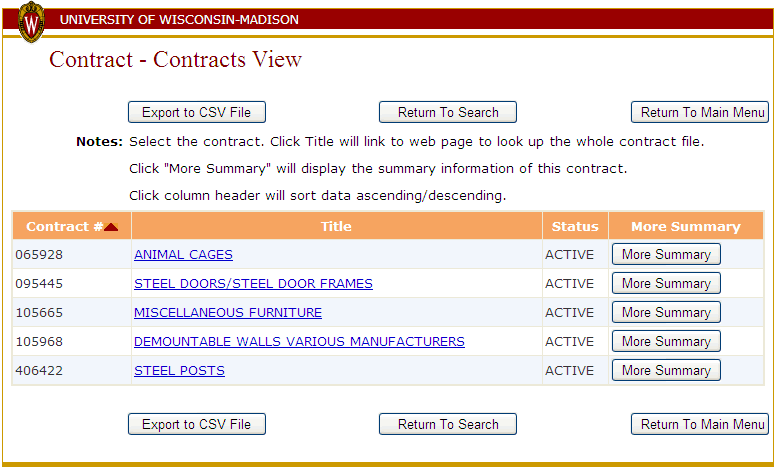
Once a search has been performed, a page of results, formatted as below, will be returned. The results will be formatted the same for any of the 4 types of searches conducted and will list the contract number, title, status, and provide a link for more information. The results below are for a Keyword Search for the word "steel." Click the "Title" link to navigate to the online contract publication for more information or click the "Summary" button for a summary display of contract, including vendor information. Click the "Export to CSV File" button to export the results to Excel.
More Contract Detail:
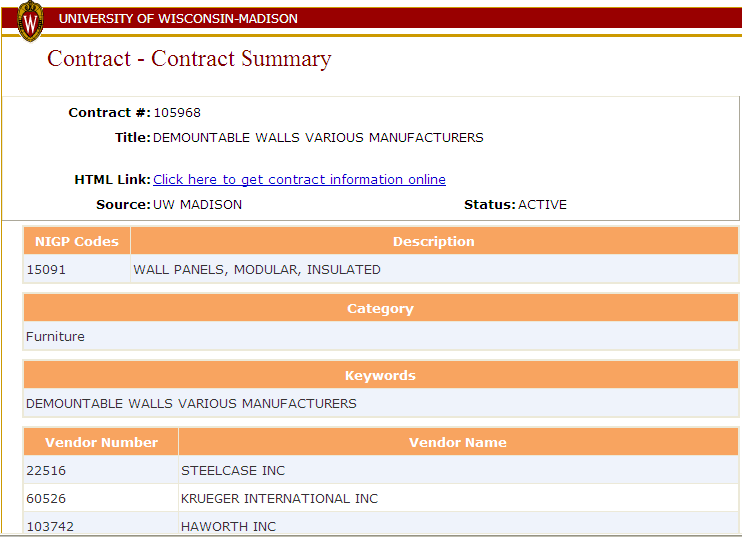
Click the "Summary" button for the contract of interest to view the database entry for that contract (as pictured below). You may navigate to the web publication from here by clicking the blue text in the "html link" field. In addition to the contract number, title, and status, you may view the source, NIGP codes, category codes, keywords, and vendors listed for each contract. Use the "Return to Grid View" button to take you back to your
search results.
Exporting a List of Results:
Click the "Export to CSV File" button from the bottom menu of your search results to export the results grid to Excel and save or print your results.